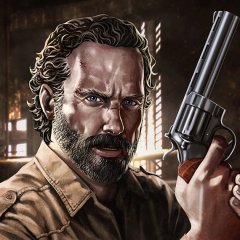
K4rMa Posted April 11, 2009 Posted April 11, 2009 Credits ~~> nblovavatar In this photoshop tutorial we are going to create an amazing looking photo effect. Step 1: First open any image. Step 2: Duplicate the layer. Go to Filter> Other> High Pass and use these settings: Step 3: Apply Film Grain Filter so go to Filter> Artistic> Film Grain. We are going to use these settings: Step 4: In this step change the layer blending mode to 'Overlay'. Step 5: Go to Filter> Artistic> Cutout and use the following settings: Step 6: Duplicate the existing layer. We need to add more definition, so go to Filter> Artistic> Poster Edges and apply the following settings: Step 7: Set the blending mode of this layer to 'Hue' and the Opacity to about 80%. Here's is the Final Result!:
FighterBoss Posted April 28, 2010 Posted April 28, 2010 Great.I dont think that it is much impressive but it could be usefull. Thnx for that :)
xAddytzu Posted April 28, 2010 Posted April 28, 2010 Great.I dont think that it is much impressive but it could be usefull. Thnx for that :) Great? :D I don't think so, it is not nice ...
FighterBoss Posted April 28, 2010 Posted April 28, 2010 Great? :D I don't think so, it is not nice ... Ok bad guy it is awful...OK? :P :P Well i think that you can make more impressive things like that which shared with us..(opinion)
Lelouch Posted April 28, 2010 Posted April 28, 2010 Thanks. Btw it looks good and in dark hair [Tested, it looks great]
Recommended Posts
Create an account or sign in to comment
You need to be a member in order to leave a comment
Create an account
Sign up for a new account in our community. It's easy!
Register a new accountSign in
Already have an account? Sign in here.
Sign In Now